Technology

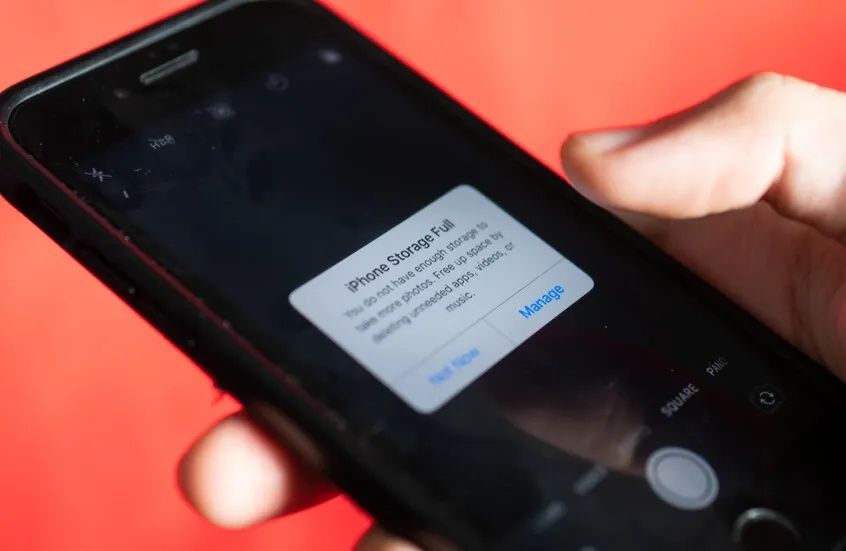
A prominent tech expert has revealed a series of simple steps iPhone users can take to free up significant storage space, as it has become clear that many are losing dozens of gigabytes of their device's memory without realizing it. Pradip Pandey, co-founder of an artificial intelligence education platform, personally demonstrated recovering approximately 47 gigabytes of storage on his device in just ten minutes by adjusting some frequently overlooked settings. Through a widely shared post on the 'X' platform, Pandey urged iPhone users to review their automatic media download settings, clear temporary data stored in app caches, and ensure photos are permanently deleted from the 'Recently Deleted' folder within the Photos application. The expert pointed out that popular applications such as WhatsApp, Instagram, TikTok, and Telegram continuously store photos, videos, and temporary files in the background, leading to a gradual filling of storage space unnoticed by the user. He added that deleted photos do not disappear immediately from the device but remain in the 'Recently Deleted' folder for up to 30 days, meaning they continue to consume space until manually and permanently removed. These recommendations come amidst increasing complaints from iPhone users about 'storage full' alerts, which can sometimes prevent them from taking photos, downloading applications, or installing updates. **Here are the key steps suggested to free up space:** 1. **Stop Automatic Media Downloads:** * **WhatsApp:** This option can be disabled by navigating to 'Settings' then 'Chats', and turning off 'Save to Camera Roll'. * **Telegram:** This can be stopped via 'Settings' then 'Data and Storage', and disabling the 'Save to Gallery' option. 2. **Clear App Cache:** This data accumulates with daily use of apps like TikTok and Instagram, consuming considerable space. To identify storage-heavy apps, go to 'Settings' then 'General' then 'iPhone Storage', where a list of apps appears, sorted by size. It is advised to delete large apps and reinstall them to clear hidden temporary data. 3. **Delete Large Attachments in the Messages App:** The Messages app may retain photo, video, and GIF files for extended periods. These can be reviewed manually by going to 'Settings' then 'General' then 'iPhone Storage' then 'Messages', and selecting 'Review Large Attachments' to delete unnecessary files.